
Put names and details on your letter
Print each person's name, an account number, or any other column from your spreadsheet on their letter.
Last updated October 26, 2026
In a bulk campaign everyone gets the same letter. With Customization, each person's letter can also show details from your spreadsheet, such as their name or an account number, in the spot you choose.
Customization is part of New, one of the two ways to send on the Bulk Campaign page. See Send the same letter to many people.
Add details to your letter
- Add your letter and your spreadsheet. Under your spreadsheet, Add details from your list shows its columns. It's optional.
- Select a column to add it, or drag it to where you want it on the letter. Each box shows the first person's value. To add another, select the arrow before Detail settings.
- Select a box to open Detail settings. There you can change which column it shows, the page, the font size, and whether the text lines up left, center, or right. You can also duplicate or remove the box. Drag a box to move it, or drag its corners to resize it.
- Use the arrows above the letter to look at other people's letters.
- Select Continue.
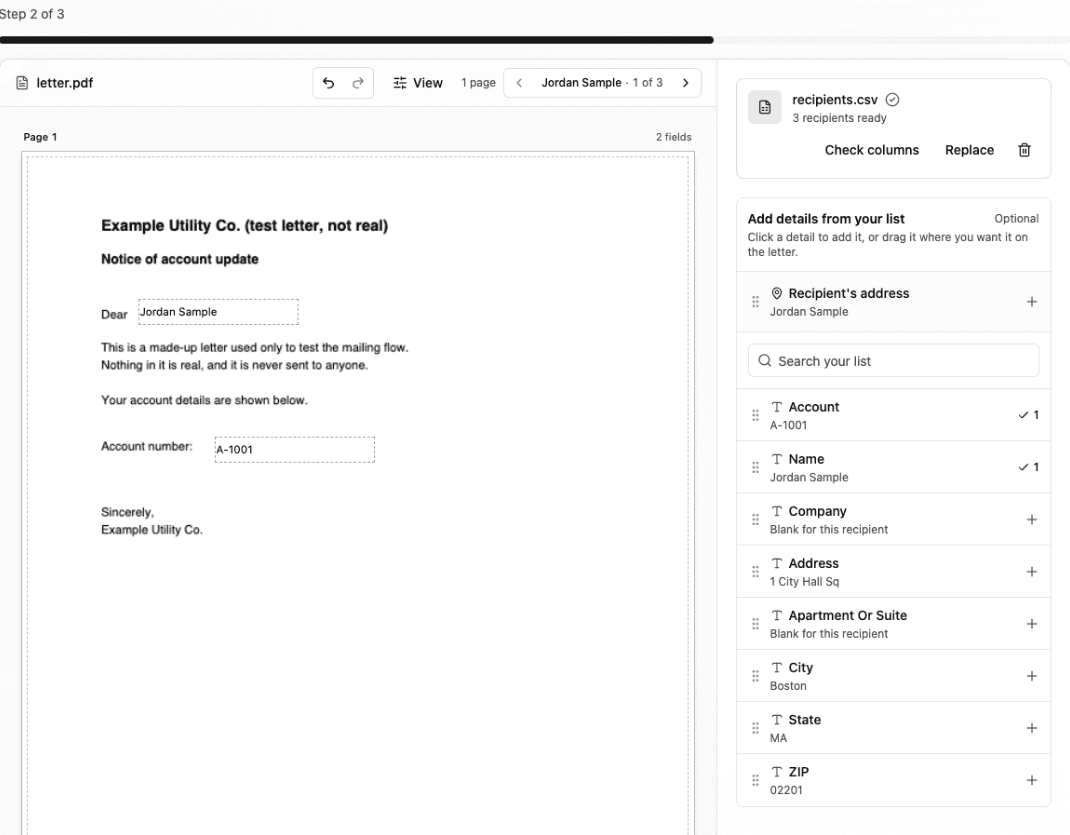
To change your details later, select the pencil in the Customization row on Review your mailing. It takes you back to your letter.
What prints
- Each person's letter shows their own value in the box, in black, in a plain font (Helvetica), on top of your PDF. The text already in your PDF isn't changed.
- A value that's too long for its box prints smaller so it fits, down to size 6.
- An empty cell prints nothing in that spot.
- Your PDF doesn't need room for the address. Every certified letter has a cover sheet with the recipient's address. To print the name and address on your own page as well, add Recipient's address, the first item in the list.
Check your letters
When you select Continue after adding details, the button reads Checking your letters while every person's letter is looked at. Then:
- If nothing is wrong, you go on to the next step.
- If something is worth a look but won't spoil a letter, it's listed as "to check," and the button reads Continue anyway.
- If something would spoil a letter, it's listed as a problem to fix, and the button reads Fix errors to continue. You can't go on until it's fixed.
| Message | What to do |
|---|---|
| … is empty for this person. | Nothing prints for them. If it should, fill in the cell in your spreadsheet. |
| … will print smaller than the size you chose | The value is longer than its box. Make the box wider, or leave it as is. |
| … is too long and will be cut off. | Make the box wider. The value doesn't fit even at the smallest size. |
| … has a character that can't be printed: Ł. | Change it in your spreadsheet and upload the file again. |
| … is too close to the edge of the page to print. | Move the box in from the edge. |
| Recipient's address needs 5 lines but only 4 fit. | Make the box taller. |
Letters used in English, Spanish, French, German, and most other Western European languages print fine, including accented letters such as é, ñ, and ü. Other characters, such as Ł, or Greek, Cyrillic, and Chinese characters, can't be printed on the letter.
Look at the finished letter
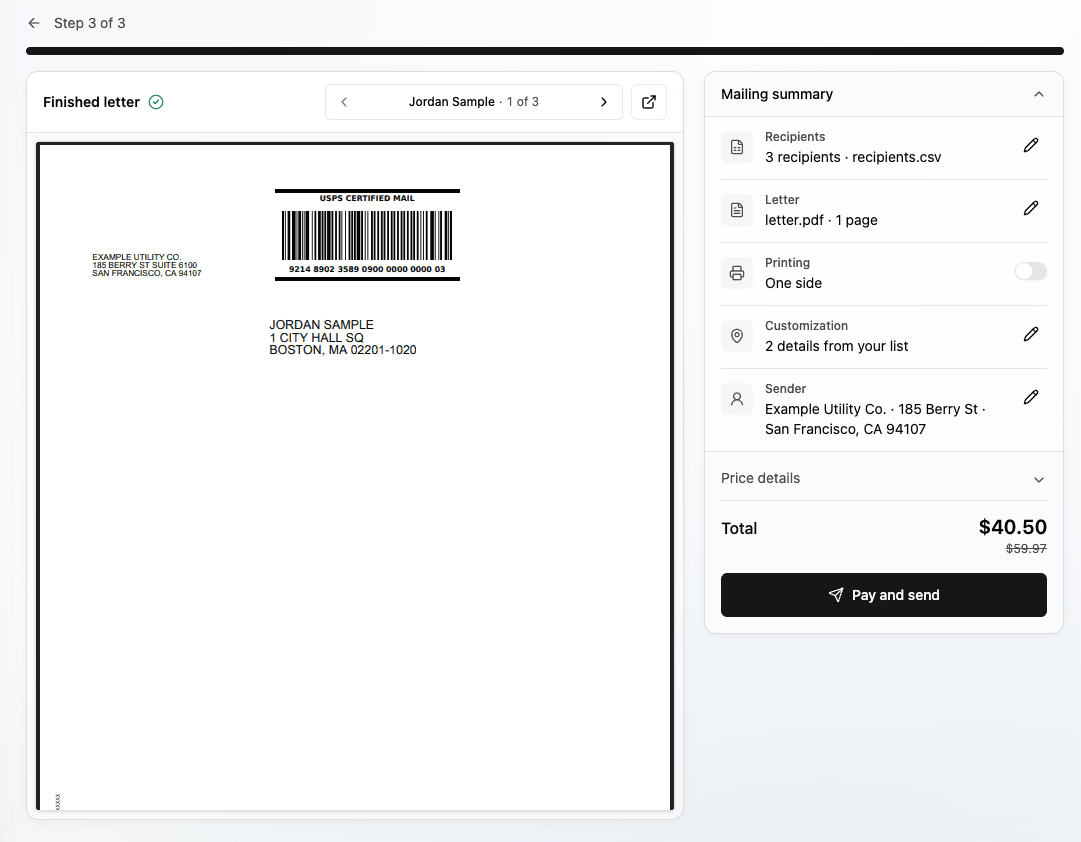
On Review your mailing, Finished letter shows each person's letter with their details in place. The first page is the cover sheet. It can take several seconds to appear, and you can pay without waiting for it.
Once you submit a campaign, it can't be canceled from your account. If you submitted one by mistake, contact us right away.